Float Button Mode via GTM
Deploy a floating button using Google Tag Manager. The button stays visible as users scroll and opens your form when clicked.
Implementation Steps
Step 1: Get Your Form Configuration
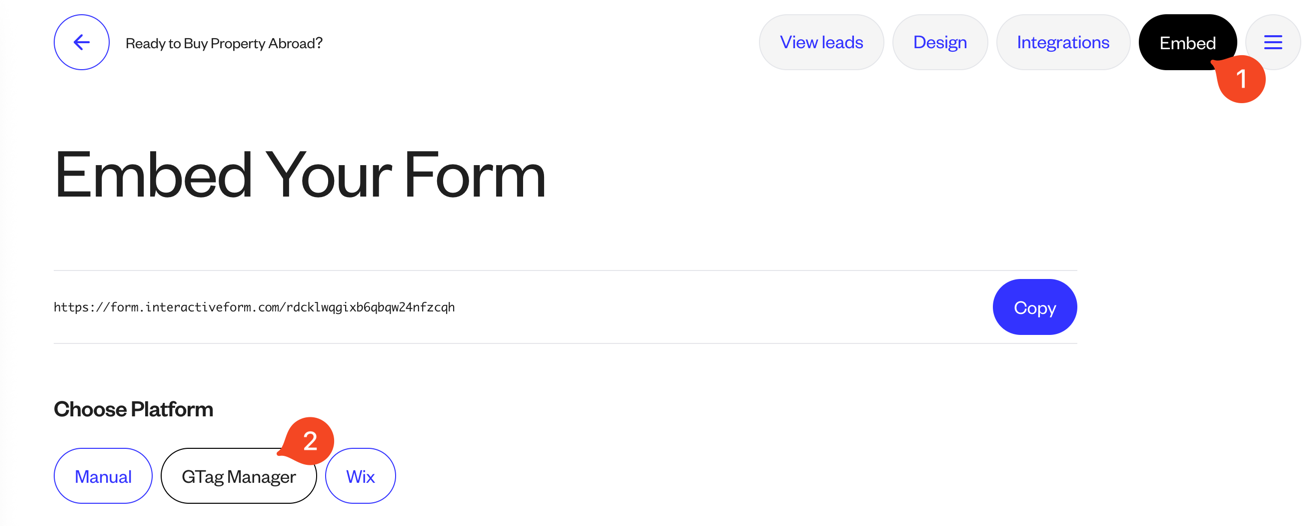
- Go to your form's Embed page
- Select GTag Manager
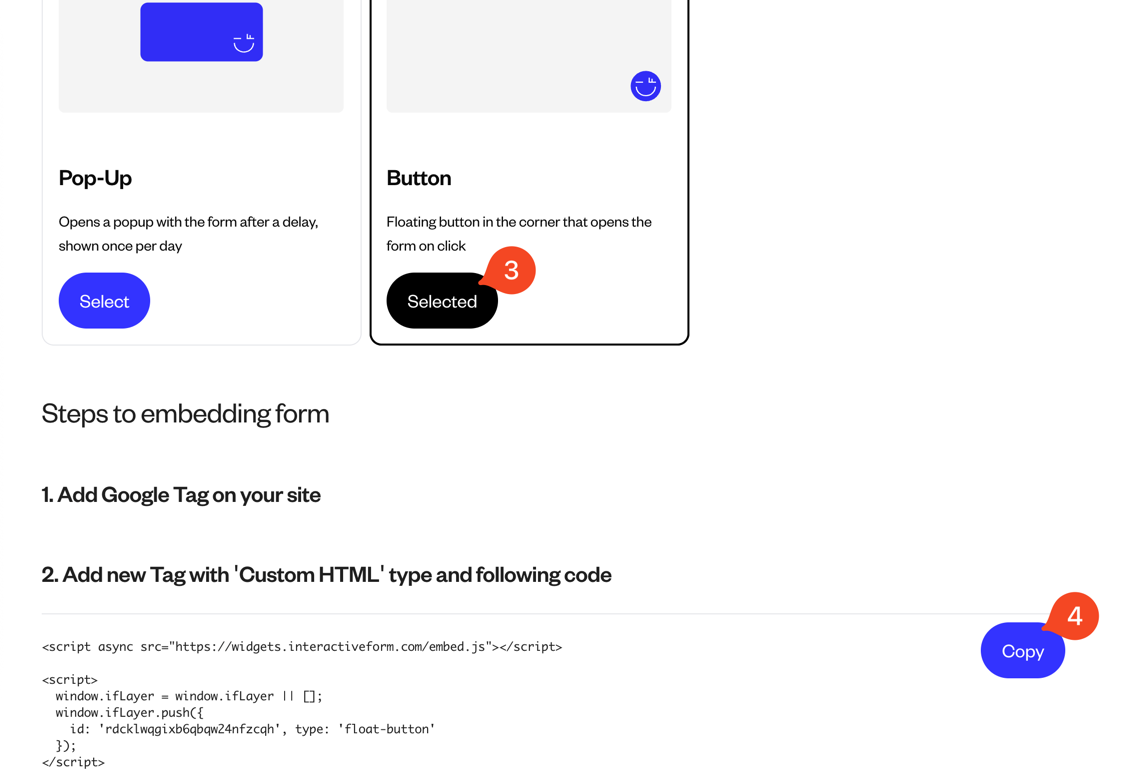
- Choose Float Button as the display mode
- Copy generated code for your form
Step 2: Create Custom HTML Tag
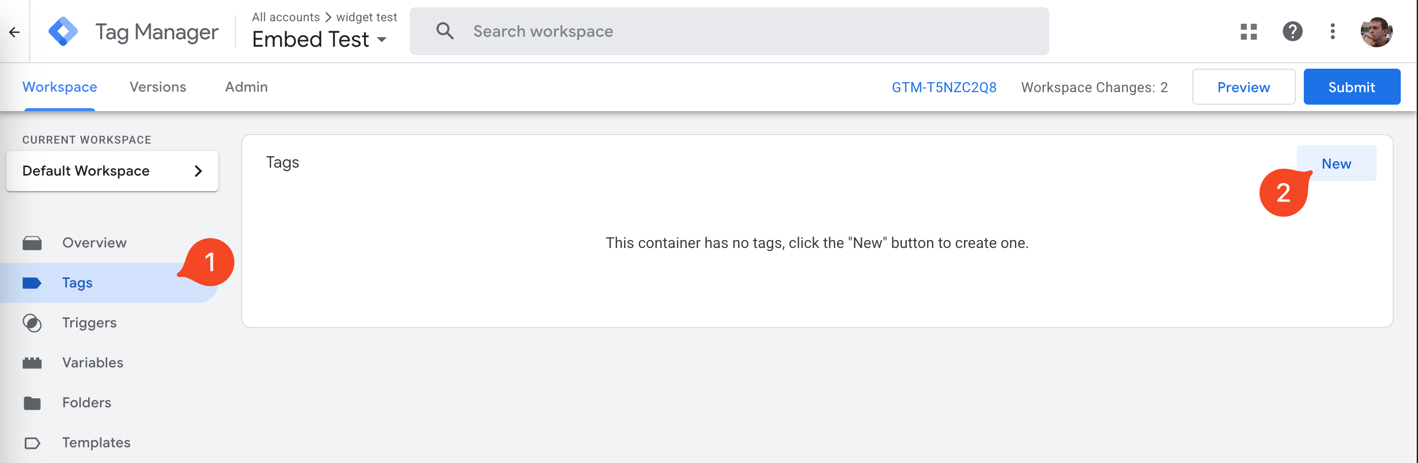
- Log in to Google Tag Manager
- Select your container
- Go to Tags → New
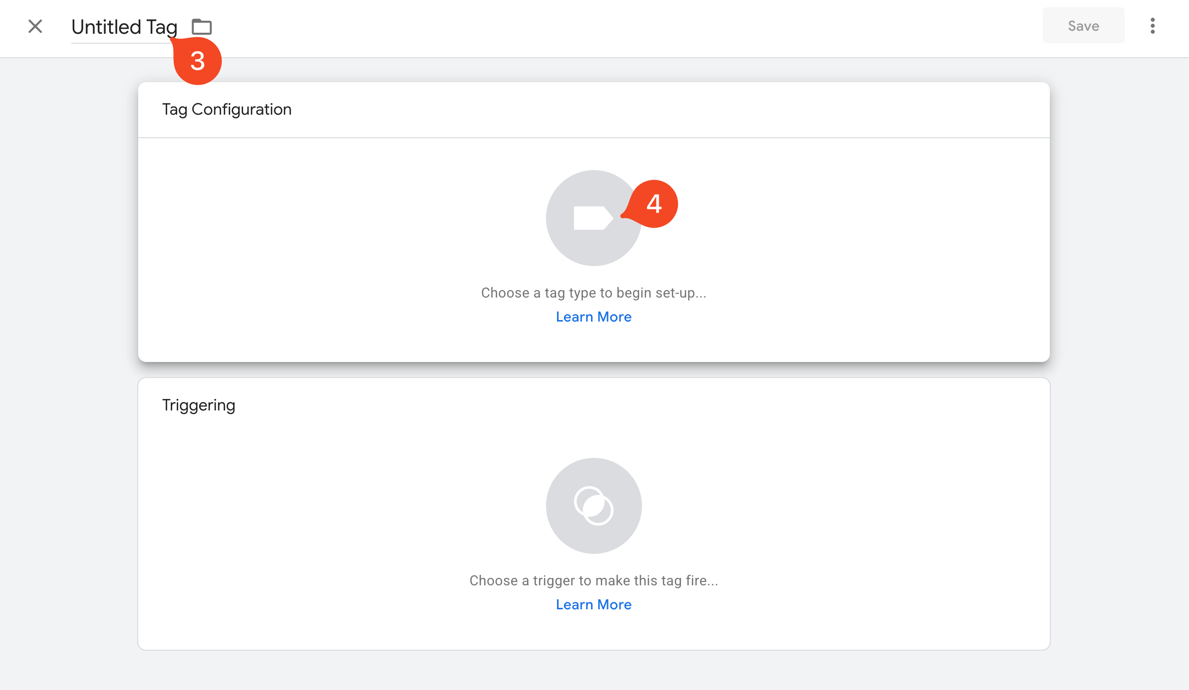
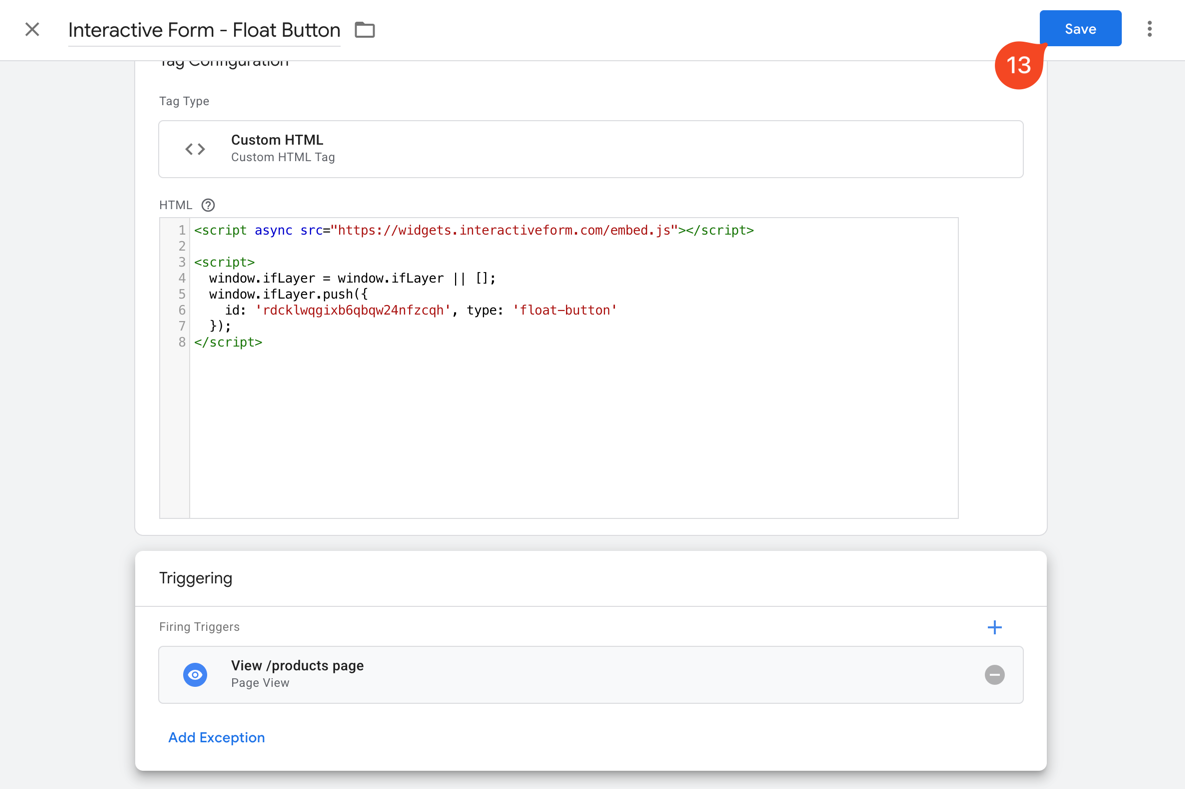
- Define the tag name like "Interactive Form - Float Button"
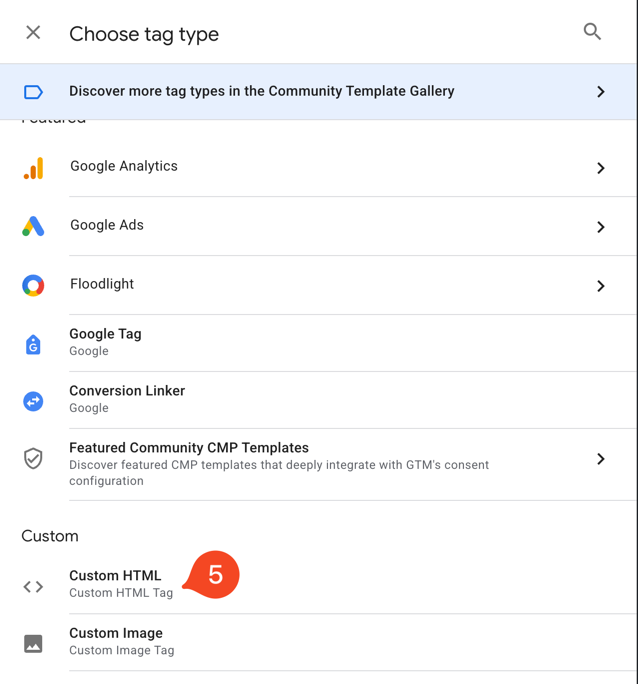
- Click Tag Configuration
- Select Custom HTML
Step 3: Add the Embed Code
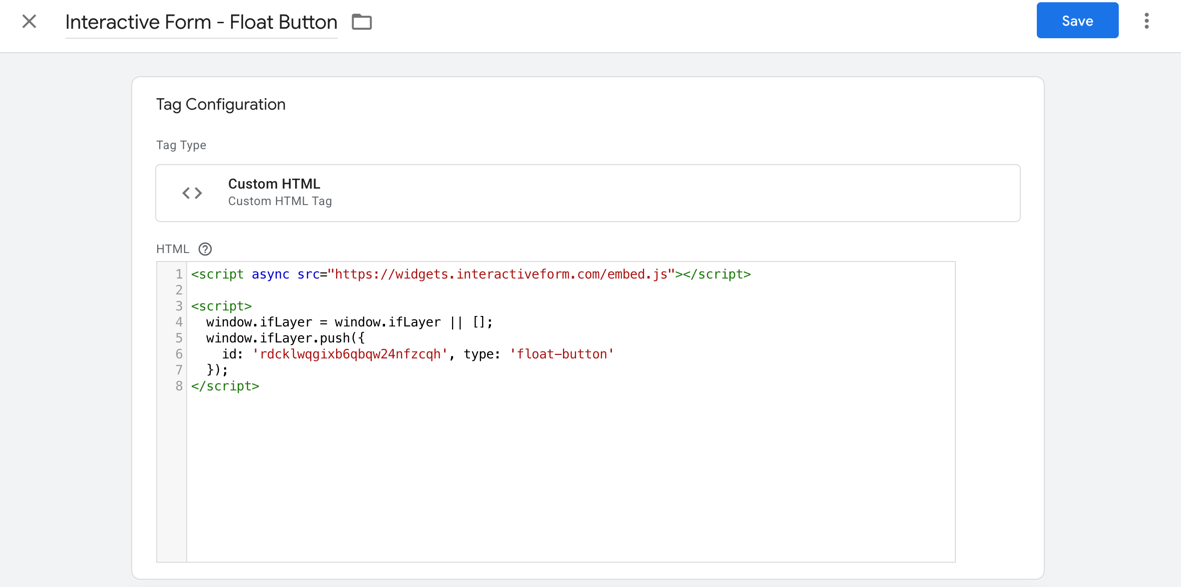
Paste the following code into the HTML field:
<script async src="https://widgets.interactiveform.com/embed.js"></script>

<script>
   window.ifLayer = window.ifLayer || [];
   window.ifLayer.push({
      id: '#YOUR_FORM_ID#', type: 'float-button'
   });
</script>
Step 4: Configure Triggering
Set when the button should appear:
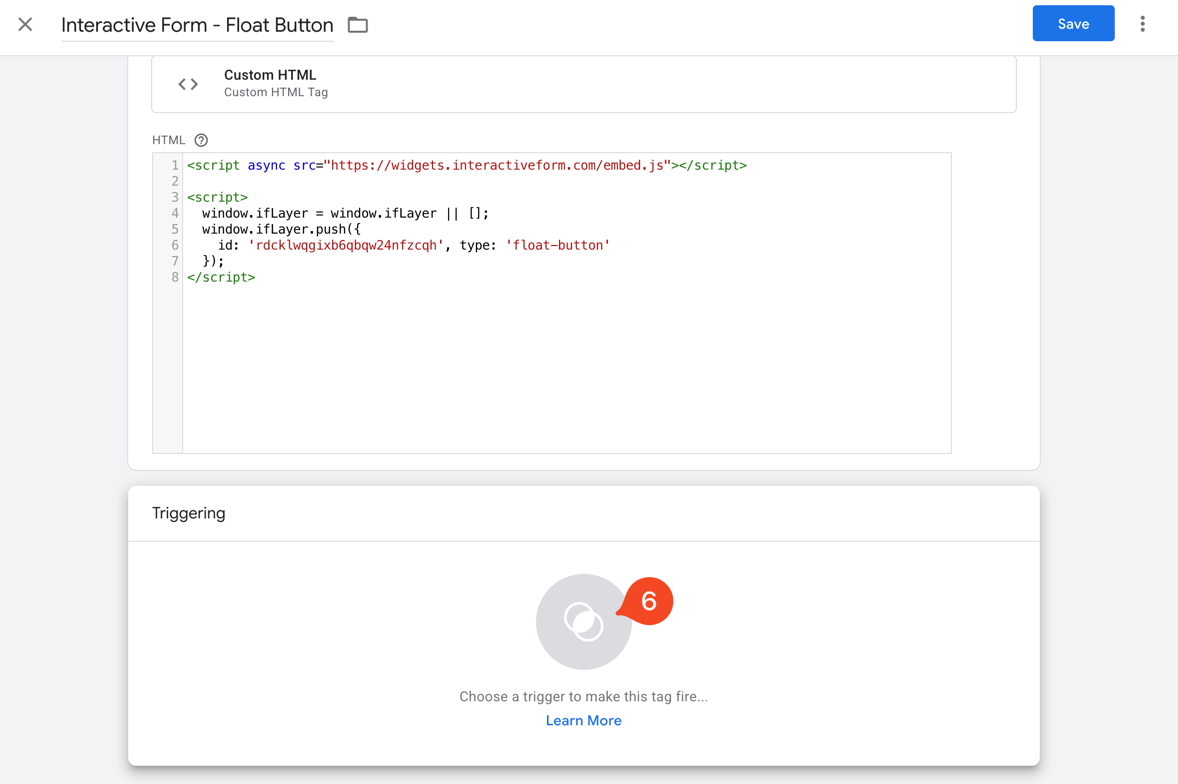
Basic Trigger (All Pages)
- Click Triggering
- Select All Pages

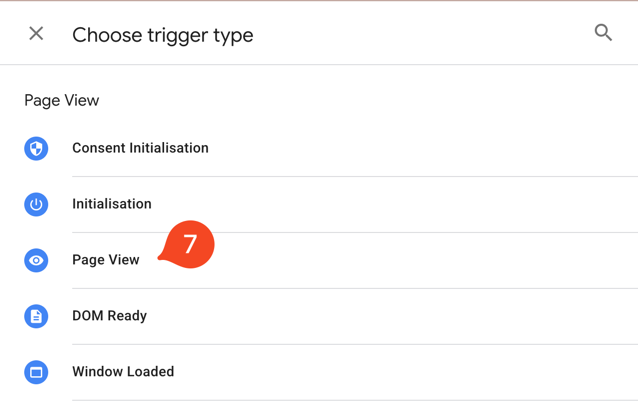
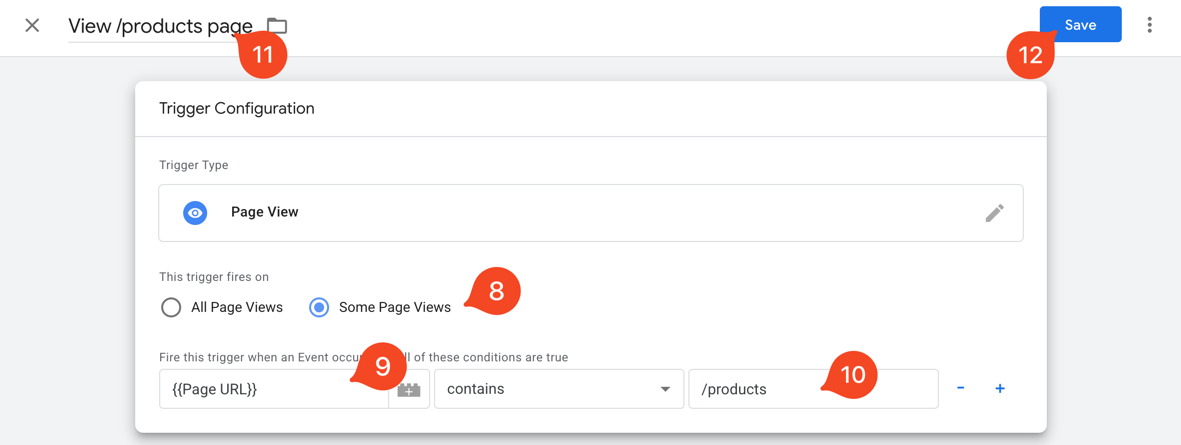
Specific Pages Only
- Click Triggering → New
- Choose Page View
- This trigger fires on: Some Page Views
- Add conditions:
Page URLcontains/products- OR
Page Pathequals/contact
- Define Trigger Name like "View /products pages"
- Click Save

Exclude Specific Pages
- Create trigger with conditions:
Page URLdoes not contain/checkoutPage URLdoes not contain/thank-you
Step 5: Save
- Click Save
Step 6: Test and Publish
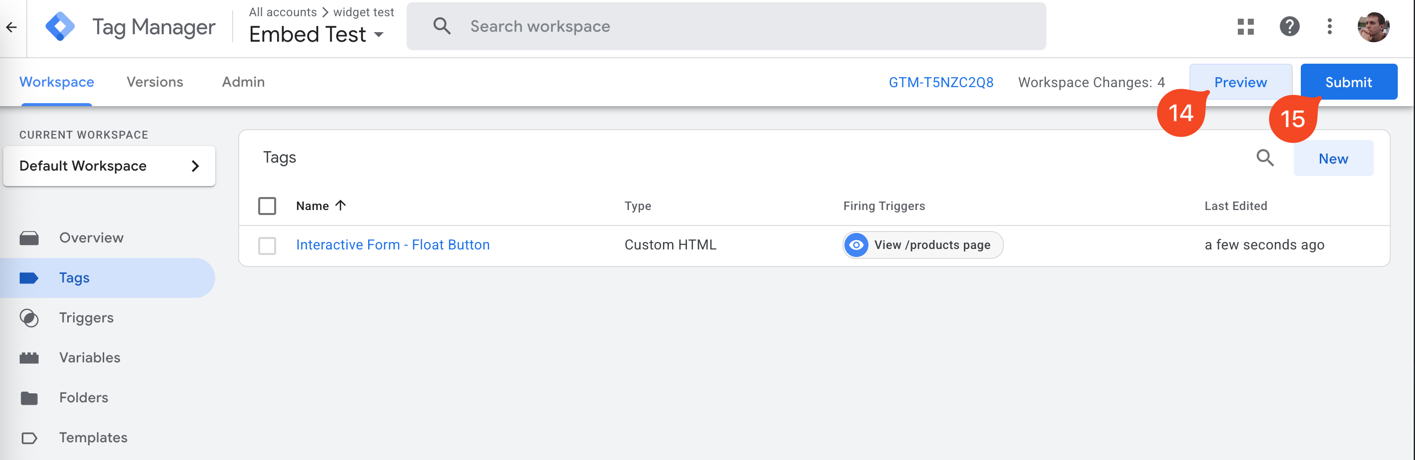
- Click Preview to test
- Verify button appears correctly
- Click Submit → Publish
Troubleshooting
Button doesn't appear
- Check GTM Preview mode to see if tag fires
- Verify trigger conditions
- Check browser console for errors
- Ensure form ID is correct
Button appears multiple times
- Check for duplicate tags in GTM
- Verify only one tag fires per page
- Use tag sequencing if needed
Best Practices
- Single Button Per Page: Avoid showing multiple float buttons simultaneously
- Clear Call-to-Action: Use descriptive button text
- Appropriate Timing: Don't show button immediately on page load
- Mobile Optimization: Test thoroughly on mobile devices
- Performance: Monitor page load impact
- Accessibility: Ensure button is keyboard accessible
- Testing: Use GTM Preview mode before publishing
Next Steps
- Learn about Popup mode via GTM
- Explore Manual Embedding for inline display option
- Check out Wix Embedding if you use Wix